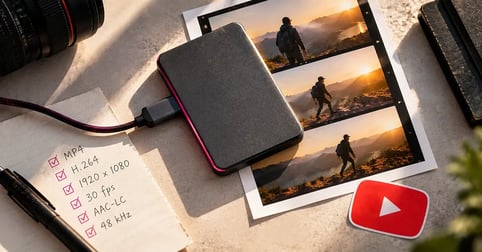
The best YouTube video format is an MP4 file with H.264 video and AAC-LC audio at 48 kHz. YouTube accepts plenty of other files, from MOV to ProRes, but it re-encodes every upload, so the real job is handing it the cleanest master you can.
"Format" trips people up because it means two things. Some people mean the file. Others mean the type of video, and if that's you, our list of YouTube video ideas is the better read. This guide covers the file side: what YouTube accepts, the container vs codec split, YouTube's recommended settings, the audio half of the export, Shorts vs long-form, and a step-by-step export.
Match the music to your timeline
Need a music bed that matches your 48 kHz timeline? Browse 120k tracks in the Soundstripe library.

What video formats does YouTube support?
YouTube publishes a list of file types it accepts for upload. The list mixes two different things: containers (the file wrapper, like MP4 or MOV) and codecs (the compression inside, like ProRes or HEVC). If your export is on the list, YouTube will take it. If it isn't, expect an "invalid file format" error and a re-export.
One rule catches music people out: an audio file on its own (MP3, WAV or PCM) can't be uploaded to create a YouTube video. YouTube's fix is to turn it into a video with editing software first. The full list lives on YouTube's list of supported file formats.
Container vs codec: why MOV vs MP4 is the wrong fight
A container is the wrapper that holds your video, audio and metadata in one file. A codec is the method that compresses the picture and sound inside it. MP4, MOV and MKV are containers. H.264, HEVC and ProRes are codecs. Picture quality comes from the codec and its settings, not from the letters after the dot.
The Library of Congress MP4 format description classes MP4 as a wrapper format meant mainly for end-user delivery, and notes it shares its design lineage with QuickTime, the format behind MOV. Adobe's reference on export containers says the same about MOV, AVI and MXF: the extension names the container, not the data inside. So an H.264 MOV and an H.264 MP4 carry the same kind of video. YouTube recommends MP4, which settles it. For how codecs shape the picture more broadly, here's how to improve video quality.
YouTube's recommended upload settings
YouTube's recommended encoding settings call for an MP4 container with the moov atom at the front of the file (what YouTube calls Fast Start), H.264 video in High Profile with progressive scan, a variable bitrate and 4:2:0 chroma subsampling. YouTube frames that page as a feature for partners who use YouTube Studio Content Manager, but its numbers are the most complete public reference there is.
The full spec, color space included, is on YouTube's recommended upload encoding settings page. Here's what matters for most exports.
Resolution and aspect ratio
16:9 is the standard aspect ratio on a computer. YouTube's recommended 16:9 sizes include 3840x2160 (4K), 2560x1440, 1920x1080 (1080p) and 1280x720 (720p). Don't bake black bars or padding into the video itself. YouTube says it interferes with the player resizing to each viewer's screen, per YouTube's resolution and aspect ratio guidance. Framing is a creative call, and there's a real case for using aspect ratio as a storytelling tool. Delivery size isn't.
Bitrate by resolution
These are YouTube's recommended video bitrates for SDR uploads. High frame rate means 48, 50 or 60 fps.
HDR uploads run higher. A 1080p HDR file, for example, is 10 Mbps at standard frame rates and 15 Mbps at high frame rates.
Frame rate
Upload at the frame rate you shot. YouTube lists 24, 25, 30, 48, 50 and 60 fps as common rates and accepts others. If your footage is interlaced, deinterlace it first: 1080i60 becomes 1080p30. If any of those terms are fuzzy, our rundown of video editing terms covers them.
Audio settings for YouTube uploads
YouTube recommends AAC-LC or Opus audio at a 48 kHz sample rate, in stereo or stereo plus 5.1. Its recommended audio bitrates are 128 kbps for mono, 384 kbps for stereo and 512 kbps for 5.1. The audio travels inside the same file as the picture, so it deserves the same attention at export, not whatever the preset happened to pick.
The music is where this usually needs a second look. Check the music file's sample rate before it goes into the timeline: if your project runs at 48 kHz, the music bed should too. The 48kHz vs 44.1kHz breakdown explains why, and it pays to get your audio levels right before export as well.
YouTube's encoding page also lists Eclipsa Audio, the open source spatial audio format Google and Samsung introduced in January 2025, for immersive mixes. Details are in the Eclipsa Audio announcement.
Shorts vs long-form export settings
YouTube categorizes any upload that's square or vertical and three minutes or shorter as a Short. If you don't want a video treated as a Short, use a wider aspect ratio such as 16:9. The codec and audio settings stay the same between the two. The shape is what changes.
YouTube doesn't publish a separate bitrate for Shorts, so the table uses its 1080p recommendation. For the creative side, see how to make YouTube Shorts.
Export a video for YouTube, step by step
The settings above come down to six choices in your editor's export window. They work the same way whichever editor you use.
How to export a video for YouTube
- Choose MP4 with H.264
Pick MP4 as the container and H.264 as the video codec. Adobe Media Encoder, for one, includes YouTube presets among its export options.
- Match your sequence to a standard 16:9 size
Set the frame size to one of YouTube's 16:9 resolutions, such as 1920x1080 or 3840x2160, with no added black bars.
- Keep the frame rate you shot at
Export at the source frame rate with progressive scan. Deinterlace interlaced footage before you export.
- Set a variable bitrate from YouTube's table
Choose variable bitrate and target YouTube's figure for your resolution, such as 8 Mbps for 1080p at 30 fps.
- Export audio as AAC-LC at 48 kHz stereo
Set the audio codec to AAC-LC, the sample rate to 48 kHz and the bitrate to 384 kbps for stereo.
- Watch the full export before you upload
Play the exported file start to finish with headphones on. YouTube re-encodes what you send, so fix problems in the file, not after.
Recording format vs upload format
Your recording format and your upload format don't have to match. Shoot and edit in whatever your camera and editor handle best, which can mean a codec like ProRes, then export a separate delivery file for YouTube. YouTube always re-encodes uploads to optimize playback, so the delivery file's only job is giving that encode a clean place to start.
Sound works the same way. Keep working audio in a high-quality format while you edit (here's the best audio format for video editing), then let the export handle the AAC-LC conversion.
Start with a clean master
YouTube re-encodes every upload, so give it a clean master, starting with a high-quality music bed.
Frequently asked questions
YouTube recommends MP4. It also accepts MOV, and when both files use the same codec, such as H.264, the video inside is the same kind of stream. The difference is the wrapper, and MP4 is the one YouTube's encoding settings name.
Not for a YouTube upload. MP4 is the container YouTube recommends. Quality depends on the codec and settings inside the file, so a better result comes from a cleaner export, not a different extension.
The highest-quality format your camera and editor handle comfortably. Recording and delivery are separate steps: shoot and edit in your best format, then export an MP4 with H.264 video and AAC-LC audio at the frame rate you recorded.
1080p videos are. 1920x1080 is YouTube's recommended 1080p size at 16:9, and it's one of several. YouTube also lists 1280x720, 2560x1440, 3840x2160 and 7680x4320 among its standard 16:9 resolutions.
No. MP4 and MKV are both containers (the Matroska specification says plainly that MKV is not a codec), and quality comes from the codec inside them. MKV isn't on YouTube's published list of accepted file types, so for a YouTube upload, export MP4.