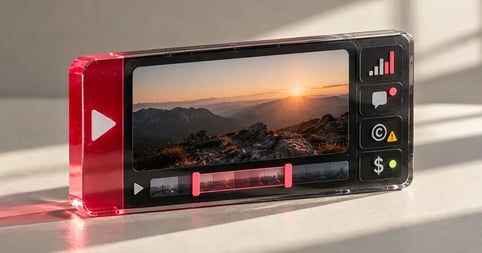
YouTube Studio is YouTube's free control room for your channel: it's where you upload, edit, track, and earn from your videos. Open it at studio.youtube.com, from the profile picture menu on YouTube, or in the YouTube Studio app, then work from the left menu, starting with Dashboard and Content.
Most Studio tours stop at "click Analytics." This one walks the menu the way you'll actually use it, then gets specific about the parts that bite later: what the built-in editor won't let you change, what it does and doesn't do with music, and where a copyright claim shows up when one lands.
This guide covers what YouTube Studio is, how to open it on a computer and on a phone, each item in the left menu, how to manage and trim a single video without re-uploading, how music works inside the editor, where to find copyright claims, and what YouTube added to Studio in fall 2026.
The editor stops at the Audio Library.
Need a track the Audio Library doesn't have? Find one that fits and add it to your edit before upload.
What is YouTube Studio?
YouTube Studio is the back end of a YouTube channel. YouTube.com is what viewers see; YouTube Studio is where the channel owner runs things: uploading and editing videos, reading performance data, replying to comments, setting up monetization, and changing how the channel looks. It's free, and it runs in a browser or the phone app. You need a channel before there's anything in it to manage.
YouTube calls Studio home base for creators in YouTube's creator starter guide, and that's a fair description. Anything you'd change about a video after it goes live, from the title to a slow intro, happens here. If you don't have a channel yet, start a YouTube channel first. Studio has nothing to show you until there's something to manage.
How to open YouTube Studio
You can open YouTube Studio three ways: go to studio.youtube.com and sign in with the Google account tied to your channel, click your profile picture on YouTube and choose YouTube Studio, or install the YouTube Studio app on iPhone or Android. The browser version is where the editing tools live. The app is built for checking in when you're away from your desk.
On a computer
Learn the browser version first. YouTube's Studio navigation guide lays out the left menu, and that menu is the same whether you came in through the URL or the profile menu. Bookmark studio.youtube.com and you skip a click every time.
On your phone
The YouTube Studio app for iPhone is free and needs iOS 17 or later, and there's an Android version too. YouTube's help center lists the Android app's bottom menu as Dashboard, Content, Analytics, Community, and Earn, which covers stats, comments, and video details. Know two limits before you lean on it: YouTube no longer lets you change a video's audio track from the mobile app, and its trim instructions are written for a computer. If your workflow is phone-first, our roundup of the best apps for YouTubers covers what to pair it with.
The YouTube Studio menu, section by section
On a computer, YouTube Studio runs off a left menu with nine main items: Dashboard, Content, Analytics, Community, Subtitles, Content detection, Earn, Customization, and Audio Library. Each one handles a single job, and once you know which job lives where, Studio stops feeling like a maze. Here's what each item does, going by YouTube's own help documentation.
Dashboard
The Dashboard is the first screen you land on. It gives a high-level overview of new activity on your channel along with what's new on YouTube, so it's where you spot a video picking up speed or a policy update you need to read.
Content
Content is your library of videos, live streams, posts, and playlists. Click any video's thumbnail to open that video's own menu (more on that further down). There's a filter bar here too, which matters when you're looking for videos with copyright restrictions.
Analytics
Analytics holds the metrics and reports for your channel and each video. In September 2026, YouTube announced new Insights and Research destinations alongside it, built to explain past performance and surface outlier videos worth studying. If you want to read those numbers with your soundtrack in mind, we've covered YouTube background music analytics on its own.
Community
Community is where comments live. You can reply from here, and you can see mentions other creators have made of your channel.
Subtitles
Subtitles is for adding subtitles and captions. Inside a single video, the same tab also handles multi-language audio and translated titles and descriptions.
Content detection
YouTube describes Content detection as the place to submit copyright takedown requests, so it's about protecting your own work. Claims made against your videos show up somewhere else: on each video's Copyright page, covered in the copyright section below.
Earn
If you're in the YouTube Partner Program, Earn is where your monetization settings live. Before you're in, the eligibility rules are what matter, and our breakdown of YouTube monetization requirements covers both tiers.
Customization
Customization controls your channel's layout, branding, and basic info. It's the tab you open when the banner still says last year.
Audio Library
Audio Library holds music and sound effects YouTube provides for use in your videos. How it connects to the editor gets its own section below, because that's where most music questions start.
How to manage a single video in YouTube Studio
Every video has its own menu inside YouTube Studio. Open Content, click a video's thumbnail, and the left menu switches to that video: Details, Analytics, Editor, Comments, Subtitles, Copyright, and Clips. Most fixes after publishing, from a weak title to a slow open, happen in Details or Editor, and neither one needs a re-upload.
Details
Details is where you change the title, description, and settings. If the description is still the one you typed at 1 a.m. on upload night, here's how to write a YouTube video description that actually helps people find the video.
Editor
The built-in editor trims videos, adds end screens, adds audio tracks, and blurs parts of the frame. YouTube's help page on how to trim your videos spells out the trim tool, and it's worth knowing well because it saves a re-upload: the URL, view count, and comments stay exactly as they were.
How to trim a video in YouTube Studio
- Sign in to YouTube Studio on a computer
Go to studio.youtube.com and sign in with the account that owns the channel. The trim tool is a desktop feature, so start in the browser, not the app.
- Open Content from the left menu
Select Content to see your library of uploads.
- Select the video you want to trim
Click the video's title or thumbnail. The left menu switches to that video's own options.
- Open the Editor
From the video's left menu, select Editor.
- Select Trim & cut and set the blue box
Select Trim & cut, then drag the sides of the blue box over the part you want to keep. Anything outside the box gets removed. To take a section out of the middle, choose New Cut and drag the red box over the part you want gone.
- Save your trimmed video
Select Preview to check the result, then click Save. There's no Revert to original after you save (YouTube removed it in June 2025), so watch the preview all the way through first.
What the editor won't let you do
The editor has hard limits, and they're easy to miss until you hit one. It only works on videos shorter than six hours. If a video has more than 100,000 views and has never been edited, you may not be able to save changes unless your channel is in the YouTube Partner Program (blurring faces is the exception). And since June 2025 there's no Revert to original once you save. For anything beyond trims and blurs, like color work or a real re-cut, edit a YouTube video in proper editing software before it ever reaches Studio.
Music in YouTube Studio: what the editor can and can't do
The YouTube Studio editor can add music to a video after it's published, and the songs it offers come from YouTube's Audio Library. YouTube says those tracks are copyright-safe, can be used in monetized videos, and won't be claimed through Content ID. It's a computer-only job: YouTube no longer lets you change a video's audio track from the mobile app.
Two details catch people out. Some Audio Library tracks carry a Creative Commons license, and those require you to credit the artist in your video's description. The YouTube Audio Library help page shows how to copy that attribution text and how to filter for tracks that don't need it. Second, YouTube's instructions to add an audio track only describe picking songs from that library. If you licensed a track somewhere else, the clean route is to mix it into your edit before you upload.
We've walked through the full process to add music to a YouTube video, both in Studio and in editing software. And if the Audio Library isn't giving the edit what it needs, here are the YouTube Audio Library alternatives worth a look.
Where copyright claims show up in YouTube Studio
In YouTube Studio, copyright claims show up in two places: on each video's Copyright page, where you can view and manage claims, and on the Content page, where you can filter by Copyright and check the Restrictions column across your whole library. A Content ID claim usually doesn't lead to a copyright strike, but you still want to know about it, so check both views after any upload that uses music you didn't make.
What you do next depends on why the claim landed. Our guide to handling a copyright claim on YouTube covers what the label means and your options for clearing it. If you want the mechanics underneath, here's how YouTube's Content ID system matches music in the first place.
What changed in YouTube Studio in 2026
At Made on YouTube on September 23, 2026, YouTube announced a round of Studio updates: new Insights and Research destinations for understanding past performance and finding outlier videos, a feedback tool that reviews drafts for pacing, structure, and storytelling, channel-matched thumbnails, and dynamic thumbnails that show the best of three options to different segments of your audience.
Testing runs through all of it. YouTube says creators have run more than 40 million title and thumbnail experiments since A/B testing launched in 2024, and video tests comparing up to three cuts are listed as coming soon. Ask Studio, YouTube's built-in assistant, is also expanding to the iOS and Android apps, according to TechCrunch's coverage. The full list is in the post where the features were announced at Made on YouTube.
Some of these are marked as coming soon, so your Studio may not show all of them yet. If a screenshot online doesn't match your screen, that's the likely reason. The fundamentals haven't moved, which is why our guide on how to get more views on YouTube spends most of its time on thumbnails, titles, and hooking viewers early.
Get the music right in the edit.
Your next upload starts in the edit. Browse 120k tracks and score it before it ever reaches Studio.
Frequently asked questions
YouTube is the site and app where people watch videos. YouTube Studio is the free dashboard where a channel owner manages them: uploading, editing, checking analytics, replying to comments, handling copyright claims, and setting up monetization. Viewers never see Studio, and you need a channel to use it.
Go to studio.youtube.com and sign in with the Google account connected to your channel, or click your profile picture on YouTube and select YouTube Studio. On a phone, install the YouTube Studio app for iPhone or Android. The desktop version is the one with the editing tools, including trim and audio.
On a computer, open YouTube Studio, select Content, click the video, then choose Editor. Select Trim & cut, drag the blue box over the part you want to keep, and click Save. The URL, views, and comments stay the same, and the tool works on videos shorter than six hours.
The Studio editor's audio tool adds songs from YouTube's Audio Library, which are copyright-safe and can be used in monetized videos. If you licensed a track somewhere else, add it in your editing software before you upload. You also can't change a video's audio track from the mobile app, so do it on a computer.
Yes. The YouTube Studio app covers your dashboard, content, analytics, comments, and monetization settings, so it's good for checking in and quick fixes. Some tools stay on desktop: YouTube says you can no longer change a video's audio track in the mobile app, and its trim instructions are written for a computer.