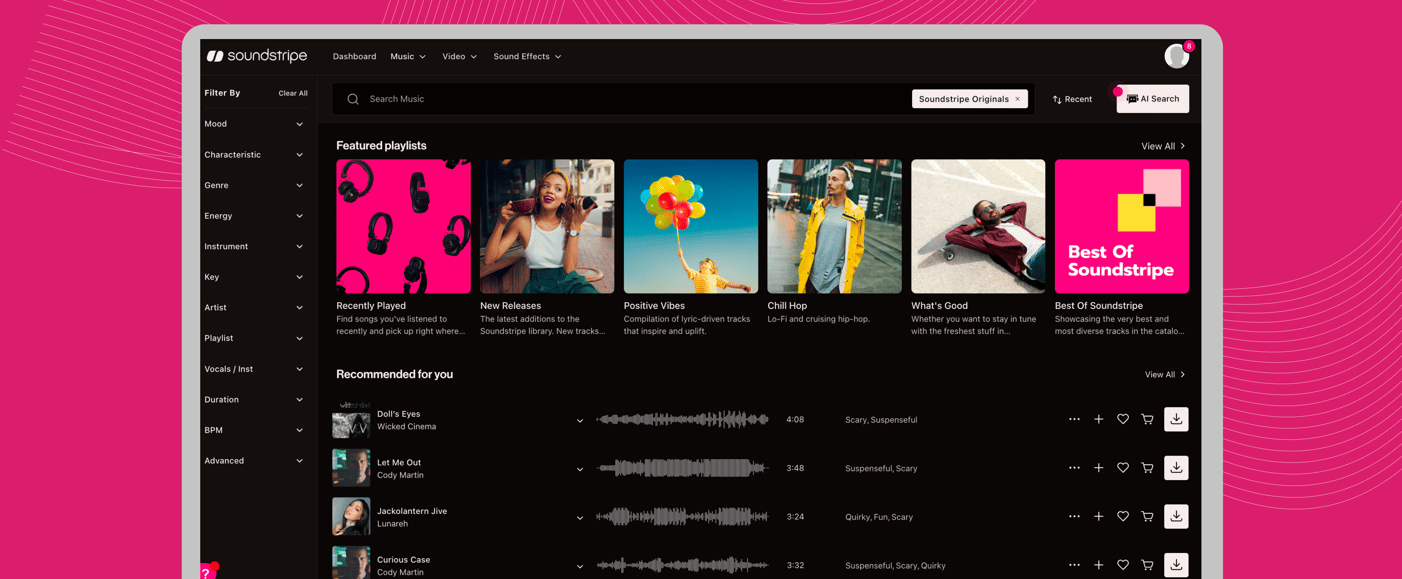
Finding the right music shouldn't be the hard part of your creative process. You've got deadlines, client feedback, and a dozen other decisions to make before you even get to the soundtrack. Soundstripe is built to take that friction away, with tools that get you to the right track faster, help you stay organized, and give you more flexibility once you've found something you love. Whether you're new to the platform or you've been here a while, here's a full look at everything Soundstripe has to offer.
Projects & Playlists
Not every track you love is right for every project and not every project needs the same playlist. Whether you're building a personal music library to reference or walking a client through options, Projects and Playlists give you a cleaner, more organized way to work.
Playlists are your personal filing system inside Soundstripe. Save any track to a playlist and pull it back up whenever you need it. No more digging through search history trying to remember "that one track with the piano thing."
Projects are built for collaboration. When you're working toward a specific deliverable such as a brand film, a podcast series, or a social campaign. Save your shortlisted tracks to a dedicated project and invite teammates or clients to review them alongside you. Everyone sees the same list, in one place, without a single email chain.
How to Save a Track:
-
Hover over any track in the library
-
Click the save icon
-
Choose an existing playlist or project, or create a new one on the spot
How to Share a Project:
-
Open the project you want to share
-
Click the share button
-
Add collaborators by email
Supe AI Search
You know the moment. The storyboard is done. The visuals are locked. You know exactly what the music should feel like, you just can't figure out how to find it. That's where Supe comes in.
Supe is Soundstripe's AI search assistant and the first of its kind in the music licensing space. Instead of typing a keyword and hoping for the best, you have an actual conversation. Supe understands natural language, responds to feedback, and helps you zero in on the right track through a back-and-forth that actually goes somewhere.
How to Use Supe:
-
Log in to your Soundstripe account
-
Navigate to the music catalog
-
Click AI Search in the top menu
-
Start a conversation: describe the vibe, the scene, the feeling
-
Refine with follow-up prompts as needed
-
Download or save your track when you've found it
How to Use Supe Video Search:
Supe's Video Search takes the conversation a step further. Instead of putting your creative vision into words, you can drop in the actual video and let Supe figure out the rest.
-
Open Supe from the AI Search menu in the catalog
-
Upload your video or image
-
Let Supe analyze your content and ask any clarifying questions
-
Review your curated track recommendations
-
License and download the one that fits
Stems
Some tracks are almost perfect. The energy is right, the tempo fits, but that one element is throwing off the mix. Maybe the vocals are competing with dialogue. Maybe you want the piano without the guitar. Maybe you just need the drums.
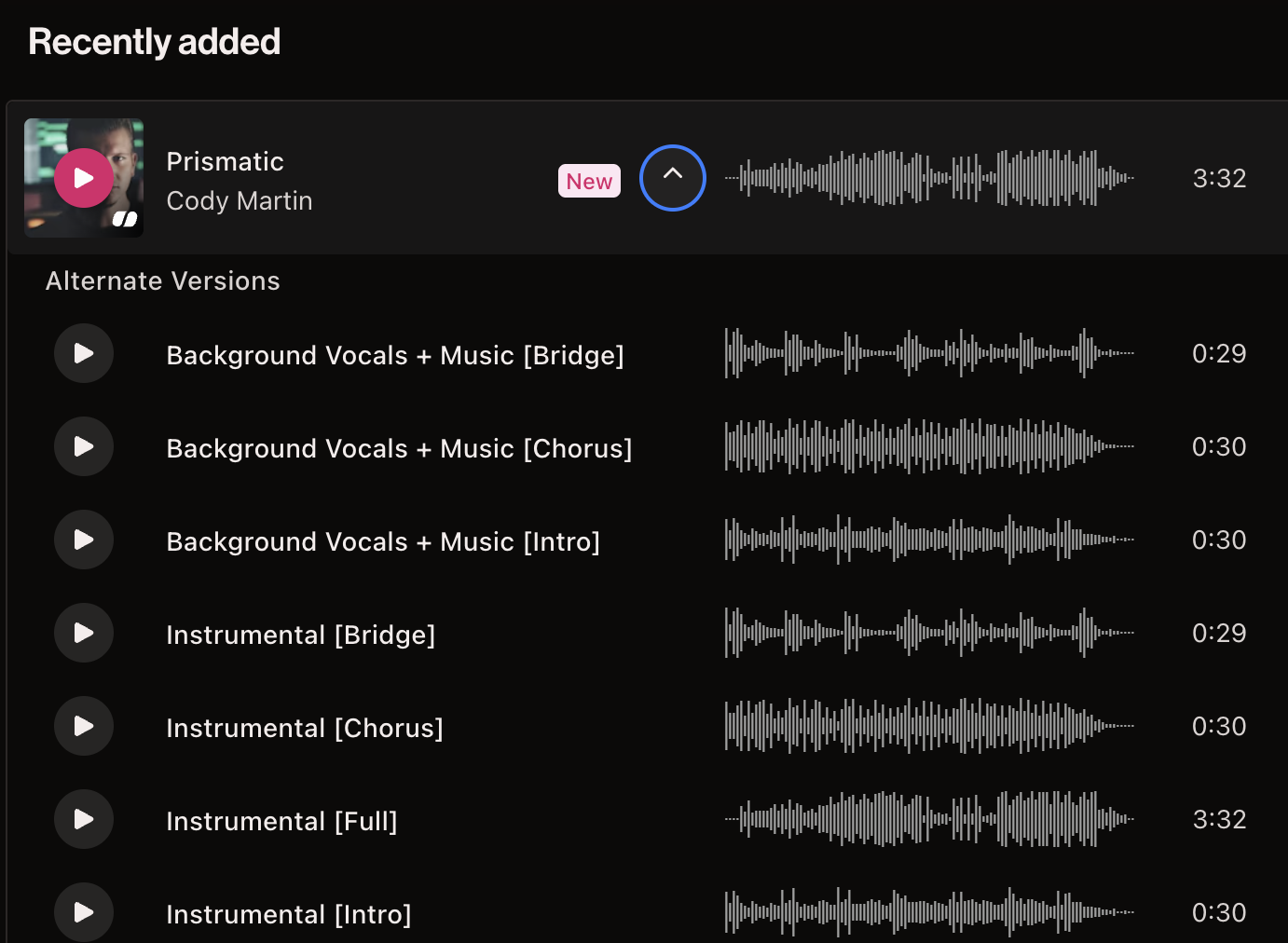
Stems, alts, and cutdowns let you shape the track around your project instead of the other way around.
For a wide range of tracks in the Soundstripe library, you can access individual stems allowing you to isolate or remove specific instruments like piano, bass, drums, or guitar.
How to Access Alts & Stems:
-
Find a track you love in the library
-
Click into the track to see available variants
-
Select the alt version that fits your edit
-
License and download just like any other track (stems are included in the download window if they are available)
Reference Track Search
If you've ever tried to describe the vibe of a track to a client or collaborator, you already know the struggle: words only get you so far. "Kind of like that one song, upbeat but not too upbeat. Moody but still cinematic." That's where Reference Track Search comes into play.
Same library. Same commercial-use licensing. Now with a smarter way to find exactly what you're looking for.
Drop in a Spotify link to any song that captures the feeling you're after, and we'll surface the closest matches in our catalog, ready to license, no copyright headaches required.
How to Use Reference Track Search:
Finding your sound takes about ten seconds:
-
Copy a song link from Spotify that matches the vibe you're going for
-
Paste the link into Soundstripe's AI search
-
View suggested songs ranked by similarity
-
Download the track you need, or save it to a playlist or project for later
That's it. No guessing. No keyword roulette.
Reference Track Search is available now for all users.
Dark Mode
Whether you’re working in low-light environments or you just prefer a darker interface, Dark Mode gives you a more comfortable, focused way to find, customize, and license music.
How to Turn On Dark Mode:
-
Click your profile avatar in the top-right corner
-
Toggle Dark Mode on or off from the dropdown menu
That’s it. No reloads. No settings maze.
Once you turn it on, your preference sticks across sessions, so you don’t have to keep flipping the switch.
Dark Mode is available now for all users.
Sound better and create faster with Soundstripe.