To add your own music in the TikTok app, tap the + icon, upload or record your video, and tap Add Sound at the top of the editing screen. That path works cleanly on Personal and Creator accounts. Business accounts see only TikTok's Commercial Music Library in the in-app editor, which blocks the local audio import path, though they can still edit a licensed track into the video before uploading it. Videos can also get auto-muted without a clear error message.
Two methods exist for getting your music onto the platform. In-app local import is free and attaches audio to one video only. Distribution through a music distributor is paid and makes your song searchable in the TikTok sound library for every creator on the platform. Choosing the right path before you start saves real troubleshooting time.
This guide covers how to add music to TikTok step by step, how to use the screen recording workaround when a track isn't in the library, what Business Accounts can do when in-app import is blocked, how to get your music into TikTok's full sound library through distribution, and the audio settings that prevent upload errors before they happen.
TikTok mutes first and warns you never.
cleared tracks that import without flags.
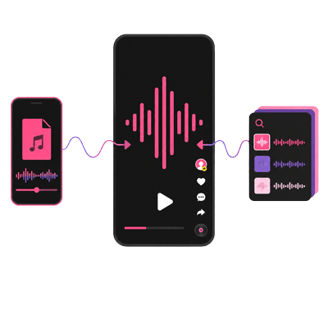
Can You Add Your Own Music to TikTok?
Yes. TikTok supports two distinct paths for adding your own music. Knowing which applies to your situation before you start saves a lot of frustration.
Two ways to add your own music to TikTok
In-app local import brings an audio file from your phone into a single TikTok video during the editing step. The music attaches to that video only. No other creator can search for or use the track. This method is free and requires nothing outside TikTok.
Music distribution means submitting your song to a distributor. That service delivers it to the TikTok sound library along with Spotify, Apple Music, and dozens of other platforms at the same time. Once live, the song appears in TikTok's Sounds tab where any creator can use it. This path takes a few days and costs an annual fee. It's the only way to make your music available to other creators.
Both methods use the TikTok mobile app on iOS and Android. Neither is available on the TikTok web uploader.
Personal, Creator, and Business accounts: which can import audio
This distinction causes more failed imports than anything else. Personal and Creator accounts have access to TikTok's full sound library, including the local import option. Business accounts see only the TikTok Commercial Music Library in the in-app editor, which does not include local audio imports.
That limit governs what you can select inside the app. It does not govern the audio already in a video you upload, which is the workaround covered further down.
TikTok routes some accounts toward Business Account setup during onboarding, and many creators end up restricted without realizing it. The distinction matters most at this step: Personal and Creator accounts get the local sound import feature; Business accounts don't.
To check your account type, open TikTok, go to Settings, and tap Manage Account. If it reads Business Account and you need local import, that setting is the block. The fix is covered in the section below on why you can't use your own music on TikTok.
How to Add Your Own Music to TikTok (Step-by-Step)
The import path starts with the TikTok Add Sound button. That's the entry point for both local file import and audio extraction from video. The eight-step path below shows what appears on screen after each tap. Most guides stop too early here.
Confirm all button labels in the live app before publishing, since TikTok updates UI copy with each version.
How to add your own music to a TikTok video
- Open TikTok and tap the + icon
The + sits at the bottom center of the screen. Tapping it opens the camera and upload interface.
- Record a new video or upload one from your camera roll
To record, hold the red circle button. To upload, tap the gallery icon at the bottom left and select an existing clip.
- Tap "Add Sound" at the top of the editing screen
A white bar with a musical note icon appears at the top. Tapping it opens the Sounds panel.
- Tap the magnifying glass at the top of the Sounds panel
This opens TikTok's sound search interface.
- Tap "Discover more sounds"
This expands TikTok's sound discovery options, including the personal import path.
- Tap "Your sounds"
This opens your personal sound library and the import options for bringing audio in from outside TikTok.
- Select your import method
Tap "Import local sound" to browse your phone's audio files (MP3 or M4A recommended). Tap "Import sound from video" to extract audio from a video clip already saved to your camera roll.
- Name your sound and tap Save
Type a title in the name field. Tap Save (or Upload, depending on your app version). The sound attaches to your current video and saves to your Your sounds library for future use.
Import a local sound file from your phone
To upload your own sound to TikTok from your phone's storage, follow the eight steps above and select "Import local sound" at step 7. TikTok opens a file browser showing your audio files. Select the file, type a name in the text field, and tap Save.
A confirmation screen shows the sound name and a short audio preview. If you see an error instead, the two most common causes are an unsupported file format and a Business Account restriction on TikTok audio import. A successful import also adds the file to your Your sounds section automatically. You can reuse it on future videos without reimporting.
Extract audio from an existing video clip
"Import sound from video" is the option to use when your audio lives inside a video file rather than a standalone audio file. This is common when a DAW, voice memo app, or screen recorder exports audio wrapped in a video container.
At step 7, tap "Import sound from video" instead of the import local sound TikTok option. TikTok opens a video picker showing clips in your camera roll. Select the clip with the audio you want. TikTok strips the audio track and treats it as a custom sound TikTok import, identical in behavior to a local file import.
Name the extracted audio in the field that appears, then tap Save.
Supported file formats and sound length limits
TikTok reliably accepts MP3 and M4A files for TikTok audio import. WAV and AAC work on some app versions but have inconsistent support across devices. If your file won't import, convert it to MP3 at 44.1kHz and 128kbps or higher before retrying. Free tools like Audacity handle that conversion in under two minutes.
Imported sounds have historically been capped at 60 seconds in the Your sounds library, though TikTok now supports videos up to 10 minutes. Verify the current import cap in the live app before publishing. If your audio exceeds the cap, trim it in an external editor first.
How to Add a Song to TikTok That Isn't in the Library
When the track you want isn't in the TikTok sound library, a screen recording workaround gives you another path. TikTok supports audio extraction from any video saved to your camera roll. That's the basis for this method.
One thing to know before you try it: this workaround still finishes inside the Your sounds panel, so it does not get around a Business Account block. If your account type is the reason import is unavailable, skip to the external editor method below instead.
The screen recording workaround, step by step
Screen recording captures your phone's internal audio as a video file. You then import that recording into TikTok and extract the audio using "Import sound from video."
On iOS:
- Open the audio you want to capture in a music app, voice memo app, or file player. Don't start playing yet.
- Open Control Center by swiping down from the top-right corner.
- Tap the Screen Record button. Confirm the microphone toggle is OFF (gray). Microphone ON captures ambient room sound, not your phone's internal audio.
- A three-second countdown appears. Return to your audio app and press play.
- When the audio ends, open Control Center and tap the red recording indicator to stop. The screen recording saves to your camera roll as a video file.
On Android:
Screen recording behavior varies by manufacturer. Samsung, Pixel, and OnePlus all use different UIs for the feature. Find Screen Record in your notification bar or Quick Settings, confirm internal audio (not microphone) is selected, and follow the same play-and-capture sequence. Import the saved recording into TikTok using "Import sound from video."
How to rename your custom sound after uploading
TikTok shows a name field during the "Your sounds" import step. Type the name you want before tapping Save. This is the only moment you can set it before the sound is committed to your Your sounds library.
Once saved, the name cannot be edited without re-uploading the file. If you skip naming and TikTok assigns a generic system label, delete the sound from Your sounds and re-import the file with the correct name.
Named sounds on public videos become searchable by other creators. That makes naming a practical step for discovery, not just organizational tidiness.
Why Can't I Use My Own Music on TikTok?
TikTok Business Accounts see only the Commercial Music Library in the in-app editor. This blocks local audio imports and causes original music to fail at the import step. That single account-type variable explains most "why can't I" situations.
Business Account TikTok music restrictions
Business Account music restrictions exist because TikTok separates commercial use from personal use at the account level. Personal and Creator accounts can access TikTok's full sound library, and both can upload your own sound to TikTok using the local import path. Business Accounts are limited to the TikTok Commercial Music Library when selecting audio inside the app, which excludes local import access.
This restriction isn't always obvious. TikTok prompts some accounts toward Business setup during onboarding, and many creators land on the restricted account type before they realize import is blocked.
What Business Accounts can do instead
The in-app limit applies to selecting audio inside TikTok. It does not apply to the audio already in a video you upload. So a Business Account can still publish a video with its own music in it, without switching account types.
Add the track to your video in a third-party editor (CapCut, iMovie, or Premiere Rush all work), export the finished file with the audio embedded, then open TikTok, tap +, and tap Upload rather than Record. The video carries its audio through intact. Complete TikTok's Music Usage Confirmation at upload to confirm you hold the rights to the music.
Two conditions apply. The music needs a license that covers commercial use on TikTok, since a Business Account posting promotional content is a commercial use. And the confirmation is a self-attestation, not a clearance, so keep your license documentation accessible in case a claim comes through later.
This route keeps your Business Account and its monetization features intact, which switching account types does not.
What to do if TikTok mutes your uploaded video
TikTok auto mute can happen to entirely original compositions, not just commercial tracks. TikTok's content ID system may flag audio that shares sonic characteristics with a protected track, even when your music is completely yours. There is no pre-upload warning. The mute occurs after TikTok processes the video.
If your video was auto-muted, file a dispute through TikTok's support page to request audio restoration. The process typically takes several business days. Submitting your music through a distributor before you upload it as a local file gives TikTok a provenance record. That can reduce false flags.
How to switch account types to restore access
TikTok lets you switch from Business to Personal or Creator in Settings > Manage Account (verify the exact path in the current app version, since this UI changes with updates). Tap Account type, select your preferred type, and confirm.
Changing account types may affect monetization eligibility. If you rely on the TikTok Creator Rewards Program or other account-specific features, review what changes before making the switch. You can switch back, but some eligibility conditions reset. For most brand accounts, the external editor method above is the lower-cost option.
How to Upload Your Music to TikTok for Free
The in-app local import is the only free path for adding your own music to a TikTok video. It adds audio to one video only. It does not put your music into the TikTok sound library for other creators to find. Getting your music into TikTok's searchable Sounds tab requires a paid distributor.
Reaching the TikTok sound library through distribution
Most major distributors deliver to TikTok alongside other platforms. Plans generally run on an annual fee, and terms differ on one point worth checking before you commit: some distributors take a percentage of earnings from social platforms including TikTok, and others do not. Compare current pricing and revenue terms directly on each service's pricing page, since both change regularly.
These are distribute-once, deliver-everywhere services. TikTok is one destination among dozens, including Spotify, Apple Music, and Amazon Music. The annual fee covers distribution across all platforms, not just TikTok.
Using a distributor means submitting your track once and letting them handle delivery to each platform. Upload your own sound to TikTok's public library this way when your goal is discoverability, not just attaching audio to one video.
What happens after your music goes live on TikTok
Once your distributor delivers the track, your song appears in TikTok's Sounds tab. Any creator searching for music can find it, add it to a video, and help it travel further. Each use links back to your original sound and its attribution page.
Distributors typically deliver to TikTok within 24 to 72 hours. In some cases it can take up to a week. Build that window into any launch timeline.
Distribution also creates a rights record in TikTok's system. That reduces the risk of TikTok auto mute on your own videos that use the same track.
TikTok Audio Tips Before You Upload
Small preparation mistakes cause real upload errors. These settings give your audio the best chance of importing cleanly and sounding right on device speakers.
Best audio quality settings for TikTok
Export your audio as a stereo MP3 at 44.1kHz and at least 128kbps. Mono files import without errors but often sound noticeably thinner through earbuds and phone speakers. Stereo is the standard for any track you want to sound professional.
320kbps is preferable for music where detail matters. TikTok re-encodes uploaded audio for delivery, so starting with a higher-bitrate source file preserves more quality after compression.
Verify your file format before you try to import. MP3 and M4A are reliably accepted. If you're working from a WAV or AIFF master, convert to MP3 first. That's a faster fix than troubleshooting a failed TikTok local sound import after the fact.
How to add music to TikTok after you've already recorded
Adding music after recording is simpler than most creators expect. The TikTok Add Sound button stays active on the editing screen at any point before you post. Open the video in the editor, tap Add Sound at the top, and follow the same import steps above. You can add music to TikTok from a local file or the sound library.
For videos saved as Drafts: open TikTok, tap your profile, tap Drafts, and open the saved video. The editing screen appears with the Add Sound option still available. You can add music to TikTok from a Draft using the exact same steps as a freshly recorded clip.
TikTok's editing screen also includes a Volume slider after you select a sound. Drag it to balance the original video audio against the added track before you post.
Music That Won't Get Your TikTok Muted
If you want tracks that are pre-cleared for TikTok and built to travel across platforms without copyright flags or TikTok auto mute surprises, Soundstripe's catalog of over 116,000 tracks by real artists covers TikTok, Instagram, YouTube, and more under a single digital license. Use Supe, Soundstripe's AI music supervisor, to describe the vibe you're going for and find a track that fits your video in seconds. Then add it using the same import steps this guide covers. No hidden exclusions, no re-licensing per platform, no rude surprises at post time.
One track, cleared everywhere you repost it.
Find music that travels past TikTok.
Frequently Asked Questions
Yes. TikTok lets you add your own music through an in-app local sound import or by distributing your song to the TikTok sound library through a paid distributor. The local import adds audio to one video only. Distribution makes your track available to all creators in the Sounds tab.
TikTok Business Accounts see only the Commercial Music Library in the in-app editor, which blocks local audio imports. You have two options. Edit the track into your video in a third-party editor, upload the finished file, and complete TikTok's Music Usage Confirmation, which keeps your Business Account intact. Or switch to a Personal or Creator Account in TikTok Settings to restore the local import option. If your video was auto-muted after posting, file a dispute through TikTok's support page.
Add the track to your video in a third-party editor such as CapCut or iMovie, export the file with the audio embedded, then tap Upload rather than Record in TikTok. Complete TikTok's Music Usage Confirmation at upload to confirm you hold the rights. The in-app editor limit applies to selecting audio inside the app, not to the audio already in an uploaded video. The music needs a license covering commercial use on TikTok.
Use TikTok's "Import local sound" option under Your sounds to upload an audio file from your phone. If the audio is inside a video file, use the screen recording method: play the audio on your phone while recording your screen (microphone OFF on iOS), then import that recording and extract the audio using "Import sound from video." Both routes run through Your sounds, so neither works on a Business Account; use a third-party editor and upload the finished video instead.
The only free path is the in-app local import, which adds your music to one video only and not to TikTok's searchable Sounds tab. Getting your music into the TikTok sound library for other creators requires a paid distributor.
TikTok's local sound import reliably accepts MP3 and M4A files. WAV and AAC work on some app versions but have inconsistent support. If your file won't upload, convert it to MP3 at 44.1kHz and 128kbps or higher before retrying.
TikTok has historically capped imported sounds in the Your sounds library at 60 seconds, though this limit may have changed as TikTok extended maximum video length to 10 minutes. Trim your audio in an external app if it exceeds the current cap, and verify the limit in the live app before publishing.
Yes. The Add Sound button stays active on TikTok's editing screen until you post, so you can add music to any video before it goes live. For videos in Drafts, re-open from your Drafts folder to reach the editing screen. TikTok also includes a Volume slider to balance the original video audio against the added track.
TikTok can auto-mute your video if its content ID system flags your uploaded audio. This happens even to original compositions that share sonic characteristics with a protected track. There is no pre-upload warning. The mute occurs after TikTok processes the video. File a dispute through TikTok's support page to request audio restoration.
The screen recording method captures your phone's internal audio as a video file. You then import that file into TikTok and extract it as a custom sound using "Import sound from video." On iOS, confirm the microphone toggle is OFF in Control Center before recording. Android steps vary by manufacturer. Use this method when a track isn't in TikTok's sound library, not as a way around a Business Account import block.
TikTok prompts you to name your custom sound during the upload step in Your sounds. Type a title in the name field before tapping Save. Once saved, the name cannot be edited without re-uploading the file. Named sounds on public videos become searchable by other creators.
Other creators can only use your music if you distribute it to TikTok's sound library through a music distributor. Locally imported sounds are private to your own videos. Distribution makes the song searchable in TikTok's Sounds tab for any creator to use.
This error usually means your Business Account doesn't have local import access, or the audio file format isn't supported. Check your account type in TikTok Settings. If you are on a Business Account, edit the track into your video in a third-party editor and upload the finished file instead of importing the sound in-app. If the account type is already correct, convert the file to MP3 and retry.